You want to leave Goodreads but you don't want to lose years of reading history. Goodreads lets you export your entire library as a CSV file. The whole process takes about two minutes. Here's how to do it, and where to take your data afterward.
What migration actually feels like
The biggest hesitation readers describe when considering leaving Goodreads is not finding a better app. It is the fear of losing years of ratings, shelves, and reading history. That anxiety keeps people on platforms they no longer enjoy. The good news: Goodreads does let you export everything, and the CSV file is yours to keep regardless of where you take it next. Once you have the file saved, the pressure disappears. See also: Best Goodreads Alternatives (2026) and Book Trackers Without a Subscription.
Before you start
You need to do this on a computer, not the Goodreads app. The export option only exists on the desktop website. If you're on your phone, open goodreads.com in your mobile browser and request the desktop site.
The export includes every book you've added - read, currently reading, and to-read. Ratings, dates, shelves, and reviews all come with it.
How to export your Goodreads library
- Log in to goodreads.com on your computer. Not the app - the website.
- Click your profile picture in the top right corner, then select "My Books" from the dropdown menu.
- Look at the left sidebar. Scroll down past your shelves. At the bottom, you'll see a small link that says "Import and export". Click it.
- Click "Export Library" at the top of the page. Goodreads will start generating your file.
- Wait 30-60 seconds. For large libraries (500+ books), it can take a couple of minutes. The page will show a progress message.
- Click the download link when it appears. Your browser will download a file called
goodreads_library_export.csv. - Done. That CSV file contains your entire reading history. Keep it somewhere safe - it's your backup even if you stay on Goodreads.
The export link can be hard to find because it's buried at the bottom of a sidebar. If you don't see it, go directly to goodreads.com/review/import while logged in.
What's in the Goodreads CSV file
The export is a standard CSV (comma-separated values) file. You can open it in Excel, Google Sheets, or any text editor. Here are the columns that matter most:
| Title | The book title |
| Author | Last name, first name format |
| ISBN / ISBN13 | Used by apps to fetch covers and metadata |
| My Rating | Your 1-5 star rating (0 if unrated) |
| Date Read | When you finished the book (if you entered it) |
| Date Added | When you added the book to Goodreads |
| Exclusive Shelf | read, currently-reading, or to-read |
| Bookshelves | Your custom shelves (fiction, favorites, etc.) |
| Number of Pages | Total page count |
| My Review | Your full review text (if any) |
The file also includes columns like Publisher, Binding, Average Rating, and Original Publication Year. Most reading tracker apps ignore these extra columns and just pull what they need.
Where to import your Goodreads library
Most reading tracker apps accept the Goodreads CSV file directly. Here are four that handle the import well.
PagePath
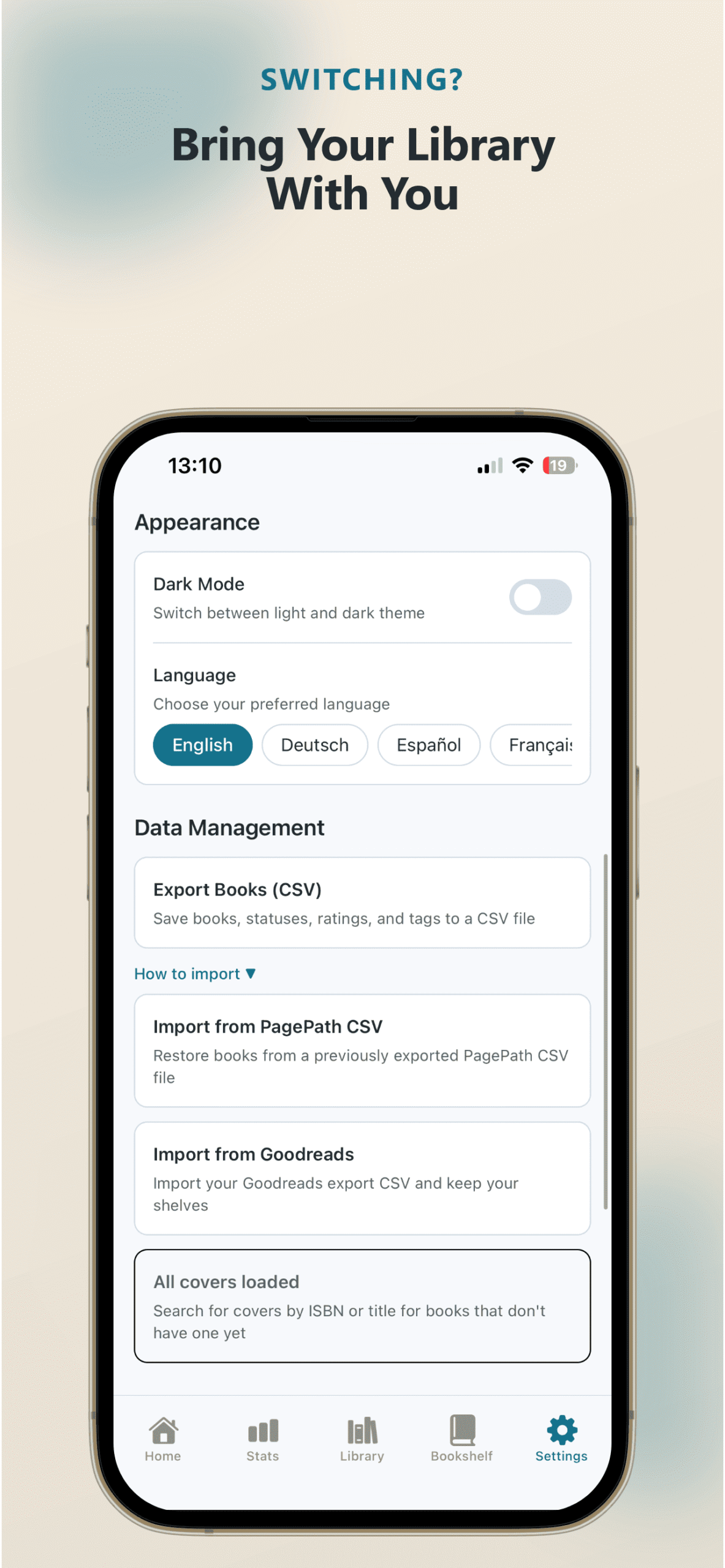
PagePath has a dedicated Goodreads import button in Settings - separate from its normal CSV import. Select your Goodreads file and it maps everything automatically: Title, Author, My Rating, Date Read, Exclusive Shelf, and all your custom Goodreads shelves (like "favorites" or "sci-fi") become PagePath bookshelves. Duplicates are detected by ISBN and skipped, but shelves and tags still get applied to existing books.
Ratings carry over 1:1 (Goodreads 4 stars = PagePath 4 stars). Covers aren't in the CSV - PagePath fetches them separately from Google Books and Open Library after import. Reviews don't carry over, but you can add notes to any book manually.
All imported data stays on your phone. Free for your first 25 books, then $9.99 one-time for unlimited.
StoryGraph
Go to Settings, scroll to Import/Export, and upload your Goodreads CSV. StoryGraph maps shelves, ratings, and dates. The import can take a few minutes for large libraries. Free to use, with StoryGraph Plus at $49.99/year for extra stats.
Hardcover
Hardcover accepts Goodreads CSV imports through its settings page. Books, ratings, and reading status carry over. It's free to use.
Literal
Literal supports Goodreads CSV import during onboarding. Upload your file when you create your account and your library is ready to go. Free to use with optional paid features.
For a full comparison of these apps and others, see Best Goodreads Alternatives (2026). If subscription pricing is a concern, there's also Best Book Tracker Apps Without a Subscription.
Want to try PagePath? Free for your first 25 books - import your Goodreads library and see your reading stats in seconds.
Not coming from Goodreads?
If you want to build a reading library from scratch (not import from another app), PagePath has a CSV template you can fill in with your books. Download it, add your titles, and import.
Frequently asked questions
Ready to import your library?
PagePath reads your Goodreads CSV directly. Books, ratings, dates, and shelves carry over in seconds. Free for your first 25 books.
Part of our complete guide to tracking what you read.